How to Check App Data Consumption on a Android and iOS Devices
In today’s world, where almost every application relies on an internet connection, monitoring your mobile data consumption is crucial. Whether you’re using a productivity app, streaming music, or engaging with social media, it’s easy to exceed your data limit. Knowing how to track data consumption on your Android or iOS device can help you manage costs and ensure you don’t run out of data when you need it most.
This guide will walk you through how to check app-specific data usage on both Android and iOS devices, so you can keep a close eye on your consumption and make adjustments if needed.
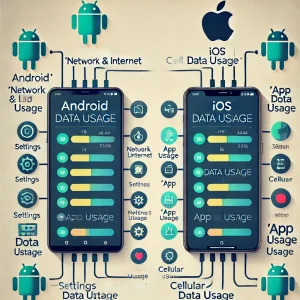
Android Devices
On Android, tracking your app-specific data usage is simple. Just follow the steps below:
- Open the “Settings” App:
- Swipe down from the top of your screen and tap on the Settings gear icon or locate the Settings app from your app drawer.
- Go to “Network & Internet” or “Connections”:
- Depending on your Android version or device model, this option might be labeled differently.
- Tap on “Network & Internet”, or for some devices, select “Connections” and then “Data Usage”.
- Tap on “Mobile Data Usage” or “Data Usage”:
- Select “Mobile Data Usage” to see a breakdown of your data consumption. This section shows how much data your apps have used within a specified period.
- Check for Each App:
- A list of apps will be displayed, along with the amount of data each app has consumed.
- Tap on an individual app to view its detailed usage, including foreground and background data consumption.
- Set Data Warnings or Limits (Optional):
- Scroll down to set up a data warning or limit to help manage your consumption.
- Monitor Wi-Fi Data Usage:
- To check Wi-Fi data usage, go to the “Wi-Fi Data Usage” option (available on most devices) and monitor your app’s data consumption over a Wi-Fi network.
iOS Devices
iOS devices also provide a straightforward way to monitor data consumption for each app. Here’s how you can access this information:
- Open the “Settings” App:
- Locate and tap on the Settings app from your home screen.
- Go to “Cellular” or “Mobile Data”:
- Scroll down and tap on “Cellular” (or “Mobile Data” for some versions).
- Scroll Down to “Cellular Data” or “Data Usage”:
- You’ll see a list of apps, along with the amount of data each has used. The apps are listed in descending order, starting with the highest data usage.
- Check Data for a Specific Period:
- iOS devices track data usage over a cumulative period since the last reset. To view data consumption for a new period, scroll down and tap “Reset Statistics” at the bottom of the screen. Note that this action will set all current data values to zero and start tracking again.
- Monitor Wi-Fi Assist (Optional):
- Scroll down to ensure Wi-Fi Assist is turned off if you want to prevent your device from automatically using cellular data when Wi-Fi signal is weak.
Tips for Managing App Data Usage
- Limit Background Data: Some apps continue to use data even when not actively in use. On Android, navigate to the app’s data settings and disable “Background Data” to prevent unnecessary consumption. On iOS, disable “Background App Refresh” in the settings for specific apps.
- Use Wi-Fi Whenever Possible: Connect to Wi-Fi networks whenever available, especially for data-heavy activities like video streaming or large downloads.
- Enable Data Saver Mode: Both Android and iOS offer data saver modes. On Android, go to “Network & Internet” > “Data Saver” and enable it. On iOS, head to “Settings” > “Cellular” > “Cellular Data Options” and switch on “Low Data Mode.”
- Track Data with Third-Party Apps: Use third-party apps like My Data Manager or Data Usage for more detailed insights into your data consumption.
Conclusion
Understanding your data usage is essential to maintaining control over your mobile expenses. Both Android and iOS provide simple, built-in tools to monitor app-specific data consumption. With this guide, you can keep track of your data usage, set warnings, and take steps to minimize excess consumption.
https://www.facebook.com/easybalanceapp
#posbusiness #agencybanking #mobilebanking #posmoniepoint #startuppos #posstartups #sme #easybalance